Product bundles in bulk
With the bulk action, you can create or modify multiple product bundles at once within afosto.app (OMS/WMS). A product bundle is a SKU consisting of multiple underlying items (components).
Want to create a single bundle manually or read up on the stock and pricing concepts first? See Creating Products Bundle.
Use this when you:
- Sell gift sets.
- Offer sets (e.g. 4 chairs + 1 table).
- Create bundles for promotions or seasons.
- Sell multiple fixed combinations.
Step 1 Go to the bulk action
Log in to afosto.app. Open Processes > Bulk actions. Choose Product bundles. You will now see a spreadsheet input screen.


Step 2 Select warehouse and business
- Give your bulk action a unique reference.
- Select the warehouse where you want to perform this action.
- Select the business where you want to perform this action.
- Click next if you agree with the selected options.


Step 3 Enter your data
Use the template as a starting point. Download it via the 'Download template' button in the platform, or via this link: Google Sheets template.
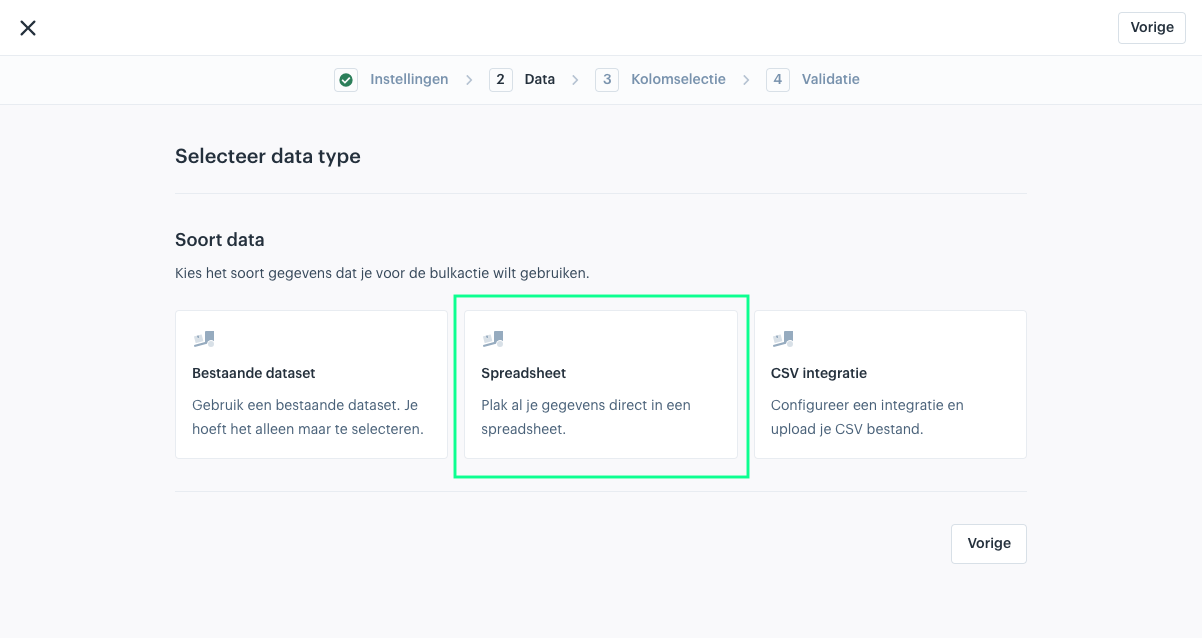
On the Data step, choose the type:
- Existing dataset: reuse a previously uploaded CSV file.
- Spreadsheet: paste your data directly from the template or another spreadsheet.
- CSV integration: upload a new CSV file.
Below we follow the Spreadsheet route, which is fastest.

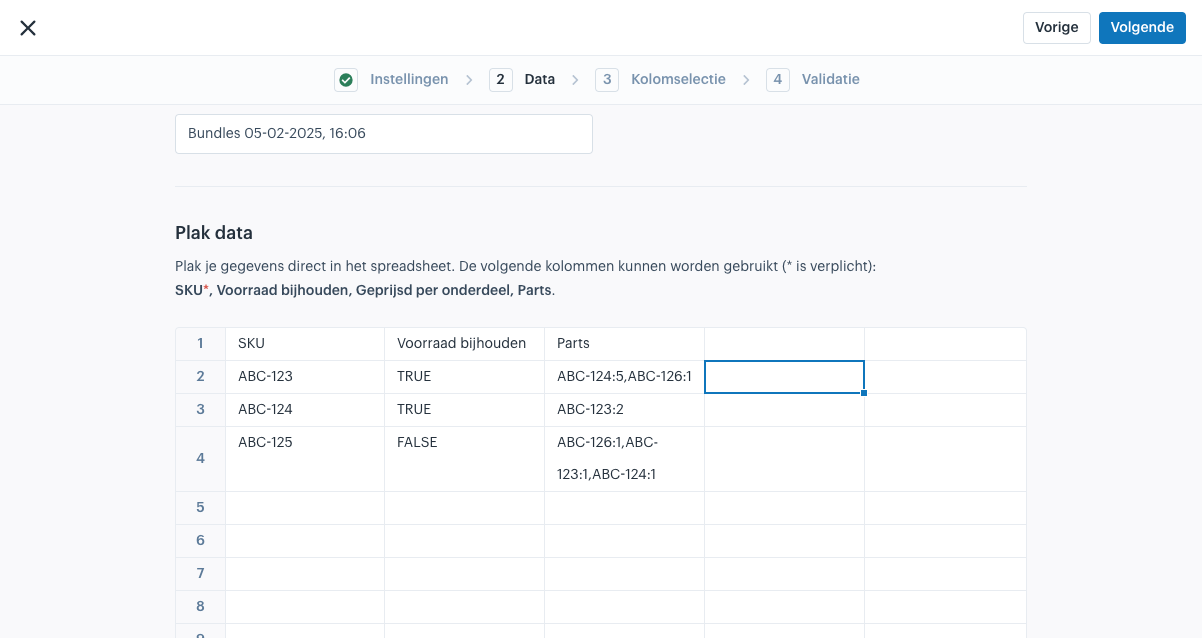
Paste your data into the table. Make sure the first row contains the column names and the next rows the corresponding values. Click 'Next' once the fields look right.
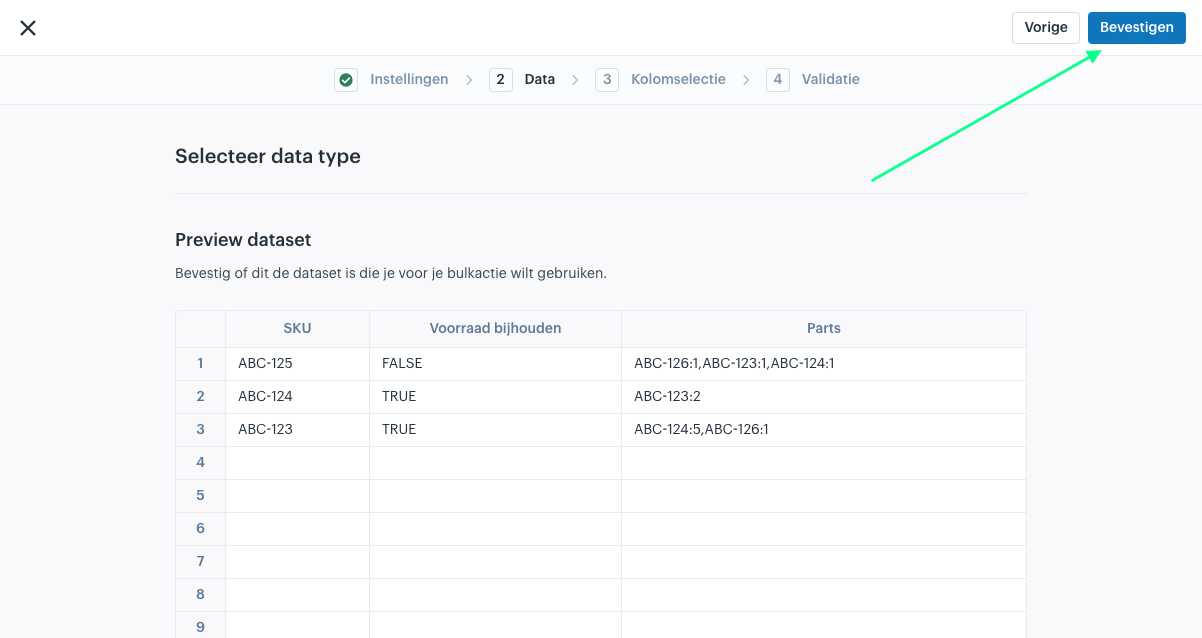
Review the entered data in the preview and confirm your dataset.
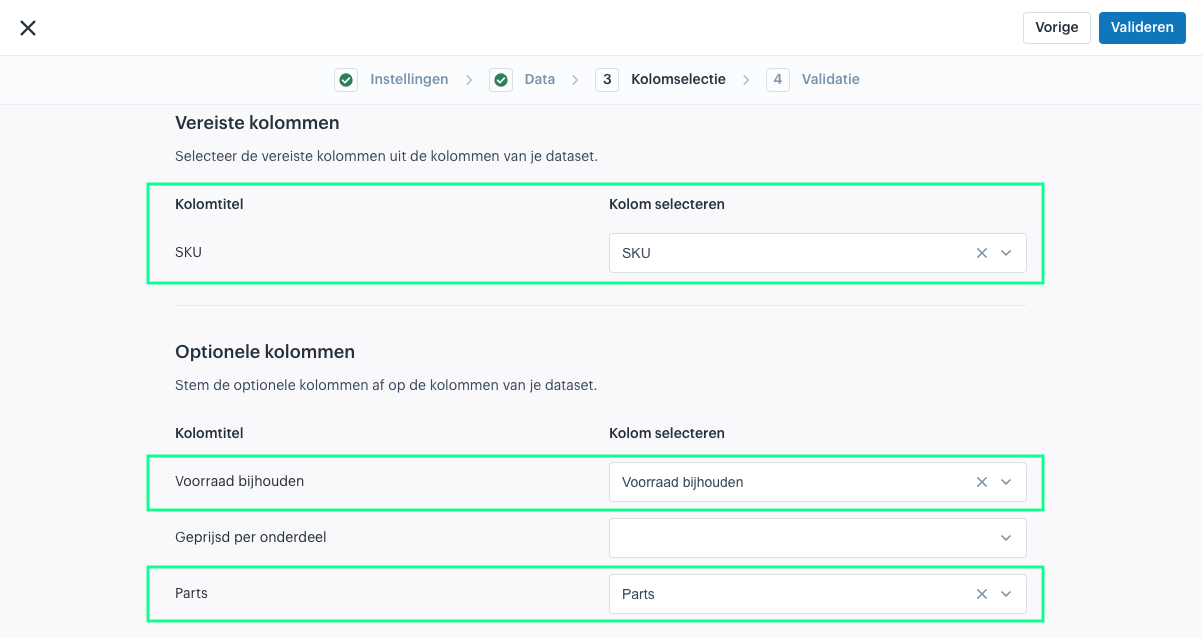
The following columns can be used (* = required):
| Column | Required | Meaning in Afosto |
| SKU* | Yes | The SKU of the bundle (the main product that is sold). |
| Track stock | No | Own stock. False = without own stock (components leading); True = with own stock. |
| Priced per component | No | Pricing type. False = bundle-based price; True = component-based price. |
| Parts | No | The components, in the format SKU:quantity, separated by a semicolon (e.g. CANDLE-01:1; TRAY-02:1). |
Tip: use the column names from the template — the system will then recognise them automatically during Column selection.
What is required?
SKU (required)*
This is the SKU of the bundle product itself. It must already exist in the system.
Track stock (= Own stock in the UI)
False – without own stock (most common): the bundle has no own stock; availability is calculated from the components. When the bundle is sold, the components are automatically deducted. If one component is out of stock, the bundle is unavailable.
True – with own stock: the bundle has its own stock level and you manage it as a separate item. Components are not automatically deducted on sale.
Priced per component (= Pricing type in the UI)
False – bundle-based price: one fixed selling price for the whole bundle.
True – component-based price: the price is built from the components.
Parts
Here you specify which components the bundle consists of: which items are deducted when sold and in which quantities. Use the format SKU:quantity, separated by a semicolon (e.g. CANDLE-01:1; TRAY-02:1). Without correct Parts, the bundle will not function.
Step 4 Check your input
- Does the bundle SKU already exist?
- Do all components (Parts) exist as SKUs?
- Are the quantities per component correct?
- Should Track stock (own stock) be on or off?
Note: SKU is always leading — not the product name.
Step 5 Execute the bulk action
- Click Validate.
- The system validates the rows; any errors are shown per row.
If successful, the bundles are immediately active.


Important notes
- Components must always have sufficient stock.
- Bundles directly affect your available stock.
- Changes take effect in real time in OMS/WMS.
- Use Track stock (own stock) carefully — it changes your stock logic.
- Prices are set separately: via the Price batchjob (for many bundles at once) or manually on the bundle's product page.
Practical example
A filled-in row looks like this:
| SKU | Track stock | Priced per component | Parts |
| GIFT-SET-01 | False | False | CANDLE-01:1; TRAY-02:1 |
In this example:
- The bundle has no own stock (components leading).
- The price is fixed (bundle-based).
- When sold, 1 candle and 1 tray are deducted.
Frequently asked questions
What happens if I upload a row for a SKU that is already a bundle?
The existing components (Parts) are completely overwritten by the new row. If you want to add a component to an existing bundle, always include all components in the Parts column — not just the new one.
What happens if one row contains an error?
Only that row is rejected; the remaining rows are processed as normal. Errors are shown per row, so you can correct them and submit again.
How do I set prices for bundles created in bulk?
Use the Price batchjob to set prices for many bundles at once. For a single bundle, you can also set prices manually on the product page.
- Step 1 Go to the bulk action
- Step 2 Select warehouse and business
- Step 3 Enter your data
- What is required?
- SKU (required)*
- Track stock (= Own stock in the UI)
- Priced per component (= Pricing type in the UI)
- Parts
- Step 4 Check your input
- Step 5 Execute the bulk action
- Important notes
- Practical example
- Frequently asked questions
- What happens if I upload a row for a SKU that is already a bundle?
- What happens if one row contains an error?
- How do I set prices for bundles created in bulk?